Support
UniStream™ Playlist
UniStream™ Playlist enables you to generate linear streams with video files uploaded to our servers.
| How to Use UniStream™ Playlist | |
|---|---|
| To upload your content, click on "View/Upload Videos" in the side bar of your UniStream™ account page. Click on "Upload File" and select the video you wish to upload from your hard drive. All your uploaded files will be listed on the "View/Upload Videos" page, where you can manage your content and start streaming videos whenever you like. If a video is currently streaming, it will be highlighted in green. | 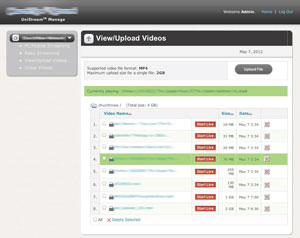 |
| To play your videos in an order of your choosing, click on "Order Videos" on the left margin. You will see a list of all uploaded videos. To change the order of the playlist, simply drag videos to the desired position. You can start streaming anytime from the "View/Upload Videos" page and the videos will play in your specified sequence. | 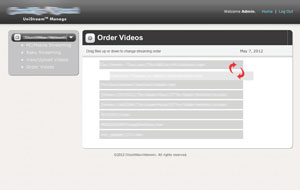 |
| You can view real-time and historical statistics by clicking on your main streaming page on the side bar. You will also be able to copy an embed code and the URLs that will make your stream accessible from desktop and mobile devices. Watch your stream anytime by clicking on the "Watch/Listen" button at the top of the page. | 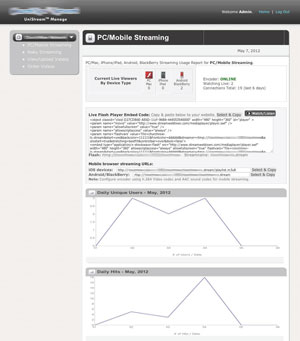 |
Customer Review
“Bible Explorations ministry has been extremely pleased working with Tulix over the last few years. They are always ready to help and always answer questions immediately. The price is good, and they are always keeping track of things and helping me.”


